SEO & Visibility Basics• 10 min read
WordPress SEO: Essential Settings for Small Businesses
RoboAd Editorial Team
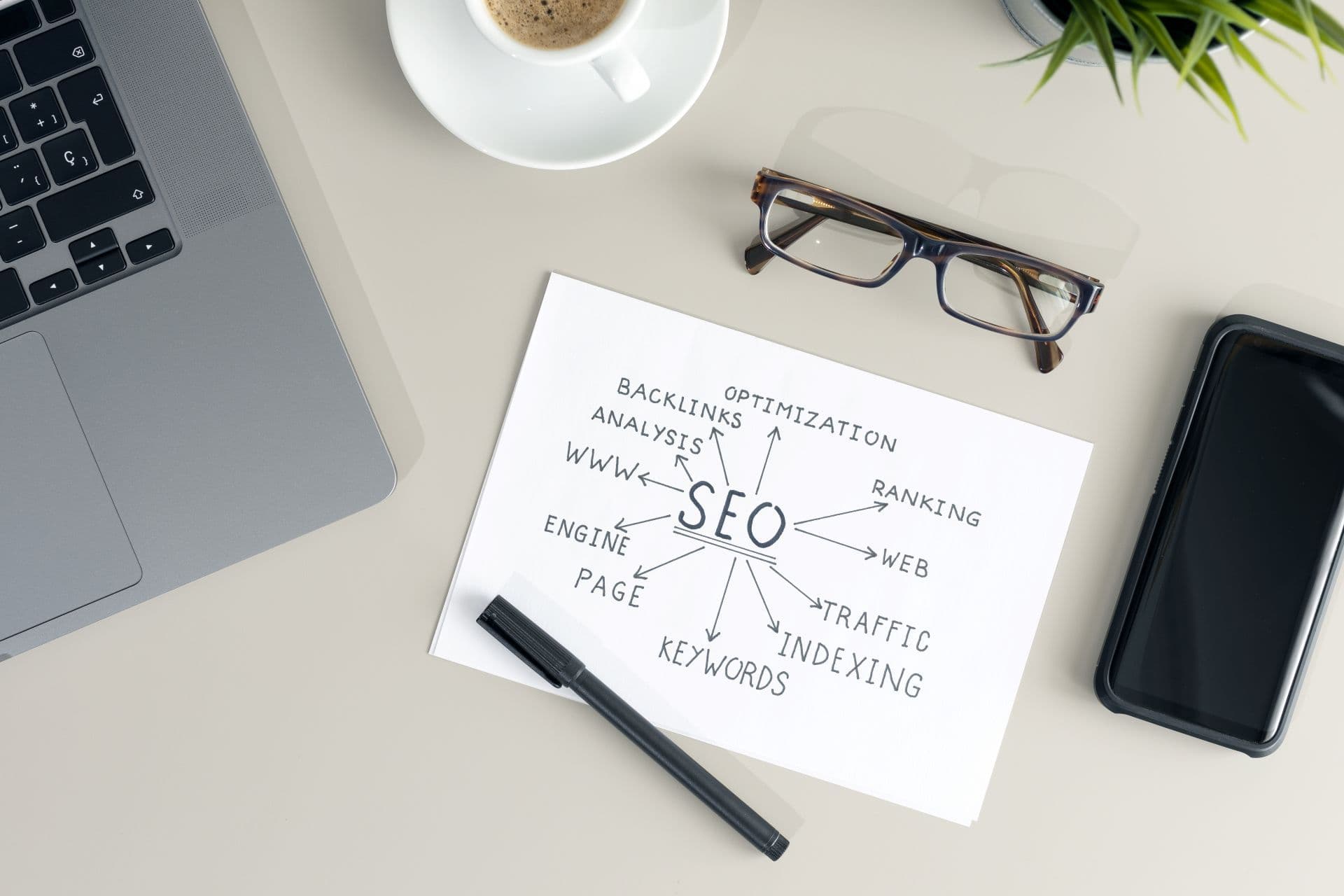
WordPress SEO: Essential Settings
If you're running a small business, your WordPress site is likely your main online storefront or lead generator. But with limited resources, you can't afford to waste time on ineffective tweaks. The good news? Focusing on essential SEO settings can deliver quick wins in visibility, traffic, and conversions—without needing a big budget or tech expertise. We'll walk through practical steps that tie directly to better rankings, more leads, and protected revenue streams, drawing from proven strategies used by businesses like yours.
Why SEO Matters for Your Small Business Site
SEO isn't just about ranking higher; it's about connecting with customers actively searching for what you offer. For small businesses, this means more organic traffic that converts into sales or inquiries, saving you money on paid ads. One hosting company, for instance, grew their organic traffic by 280% to over 4 million monthly sessions by implementing core WordPress SEO tips like friendly URLs and internal linking. You can achieve similar results by starting with basic configurations that make your site easier for search engines to understand and prioritize.
Begin by ensuring your site is visible to search engines. In your WordPress dashboard, go to Settings > Reading and uncheck the box that says "Discourage search engines from indexing this site." This simple flip prevents your content from being hidden, allowing Google and others to crawl and rank your pages.
Core Dashboard Settings to Configure First
Your WordPress dashboard holds the foundational SEO levers. Get these right early to avoid rework later.
Start with permalinks—the structure of your URLs. Head to Settings > Permalinks and select "Post name" for clean, readable links like yoursite.com/essential-seo-tips instead of messy defaults with numbers and dates. This makes URLs more user-friendly and keyword-inclusive, boosting click-through rates from search results. For small businesses, include location or service terms naturally, like yoursite.com/local-plumbing-services, to support local searches.
Next, set your preferred domain format. In Settings > General, decide on www.yoursite.com or yoursite.com (no www) and enter it consistently in both WordPress Address and Site Address fields. Use a plugin or hosting tools to redirect the non-preferred version, preventing duplicate content issues that dilute your rankings.
Don't overlook HTTPS. Install a free SSL certificate through your host (like Let's Encrypt) to switch from HTTP to HTTPS. This not only secures your site but also gives a ranking boost, as search engines favor secure sites. For a small retail business, this change alone can build trust, reducing bounce rates and encouraging purchases.
Choosing and Setting Up an SEO Plugin
Plugins like Yoast SEO or All in One SEO (AIOSEO) handle much of the heavy lifting. We recommend Yoast for its free core features and ease for beginners—over 15 million sites use it.
Install Yoast from the Plugins menu, activate it, and run the first-time configuration wizard. It guides you through basics like site type (e.g., small business), representation (organization or person), and social profiles for better Knowledge Graph inclusion.
Key Yoast settings to tweak:
- Site Basics: Under Yoast SEO > Settings > Site Basics, add your site name, tagline, and logo. Choose a title separator like a hyphen for clean meta titles.
- Content Types: Configure posts and pages to show in search results. Set templates for SEO titles (e.g., %%title%% %%sep%% %%sitename%%) and meta descriptions under 160 characters.
- Taxonomies: Make categories and tags searchable if they add value, but noindex thin ones to avoid low-quality indexing.
- Archives: Disable author archives if you're a solo operator to prevent duplicate content.
- Media: Redirect attachment pages to the parent post to streamline crawling.
For small businesses, enable Yoast's readability analysis—it scores content for ease, suggesting shorter sentences and active voice to keep visitors engaged longer, which signals quality to search engines.
If you spot issues post-setup, use RoboAd’s free website audit to scan for missed optimizations and get tailored fixes.
On-Page Optimization: Making Your Content Shine
On-page SEO turns your content into search magnets. Focus on elements within each post or page.
Use headings wisely: One H1 (usually your title) per page, with H2s and H3s for subsections including keywords. In the editor, add your focus keyword in Yoast's meta box—it analyzes density and placement for optimal use without stuffing.
Optimize images: Before uploading, compress them (tools like TinyPNG work well) and name files descriptively, e.g., small-business-seo-checklist.jpg. Add alt text with keywords: "Essential WordPress SEO settings checklist for small businesses." This aids accessibility and image search traffic.
Build internal links: In long posts, link to related pages with anchor text like "learn more about permalink settings." Yoast's link suggestions help here, distributing authority and keeping users on-site longer.
For meta tags, craft compelling titles under 60 characters and descriptions that include calls to action. Example title: "WordPress SEO Tips for Small Businesses in 2025." This can improve click-through rates by up to 20% when keyword-frontloaded.
Technical SEO: Behind-the-Scenes Essentials
Technical tweaks ensure search engines can access and understand your site efficiently.
Generate an XML sitemap via Yoast (under Settings > General > Features) and submit it to Google Search Console and Bing Webmaster Tools. This maps your content for faster indexing—crucial for small businesses launching new product pages.
Edit robots.txt in Yoast's Tools section to allow crawling of key directories while blocking admin areas. Add schema markup through Yoast's content types for rich snippets, like star ratings on service pages, which can increase clicks by 30%.
Prioritize site speed: Use a caching plugin like WP Rocket and enable lazy loading for images. Aim for under 3-second load times—Google's Core Web Vitals reward this with better rankings. For mobile optimization, choose a responsive theme; test with Google's Mobile-Friendly Tool.
Handle redirects for changed URLs: In Yoast Premium or a free redirect plugin, set 301s to preserve link equity.
Local SEO Tips for Small Businesses
If you serve a specific area, claim your Google Business Profile and integrate local keywords into page titles and content, like "Affordable SEO Services in Seattle." Create location pages with embedded maps and encourage reviews—these boost local pack visibility, driving foot traffic or calls.
AI & Chatbot Optimization: Make Your Content Easy to “Answer”
With AI-powered search like Google's Search Generative Experience (SGE) and chatbots pulling answers directly, optimize your WordPress content to be "answer-ready." This means structuring for quick, factual responses that drive traffic back to you.
Start by writing in Q&A format: Use H2s for questions like "What are the best WordPress SEO plugins?" followed by 2-3 sentence answers. "Yoast SEO is a top choice for beginners, offering meta optimization and readability checks. It integrates easily with WordPress to improve rankings without coding."
Add structured data: In Yoast, enable FAQ schema for question-based content—this helps AI tools extract and feature your answers. Tools like Semrush's Content Toolkit can generate AI-optimized drafts integrable with WordPress, analyzing SERPs for intent and suggesting outlines that match conversational queries.
For chatbots, focus on natural language: Use tools like ChatGPT for keyword insertion, ensuring content reads conversationally while including long-tail phrases people ask aloud. Small businesses benefit by targeting voice searches, like "how to set up WordPress SEO for a bakery," to capture zero-click opportunities that still link back.
Keep pages fast and mobile-first, as AI favors reliable sources. How RoboWrite turns insights into content can automate this, turning audit data into AI-friendly posts.
Essential Settings Checklist: Do This Next
Use this table as your quick-start guide. Check off as you go to ensure nothing's missed.
| Setting | Action | Why It Helps Small Businesses |
|---|---|---|
| Permalink Structure | Set to "Post name" in Settings > Permalinks | Creates clean URLs that include keywords, improving click rates and local relevance. |
| Search Visibility | Uncheck "Discourage search engines" in Settings > Reading | Ensures your site gets indexed, bringing in free traffic without ad spend. |
| SSL/HTTPS | Install via host and force in .htaccess | Builds trust and gives a ranking edge, reducing cart abandonment for e-commerce. |
| SEO Plugin Setup | Install Yoast, run wizard, configure content types | Automates meta tags and analysis, saving time on manual optimizations. |
| Image Optimization | Compress files, add keyword alt text | Boosts image search traffic and site speed, key for mobile users. |
| Sitemap Submission | Generate in Yoast, submit to Google/Bing | Speeds up indexing of new pages, like promotions, for timely visibility. |
| Internal Linking | Add 3-5 per post with descriptive anchors | Keeps visitors engaged longer, signaling quality and boosting conversions. |
| Schema Markup | Enable in Yoast for FAQs and reviews | Enhances snippets for higher clicks, especially in competitive local searches. |
| AI Q&A Structure | Use question headings and short answers | Prepares content for chatbots, driving referral traffic from AI responses. |
Aim to complete these in one afternoon. Track progress in Google Search Console—watch for impressions rising within weeks.
Measuring Success and Next Steps
Connect Google Analytics and Search Console to monitor traffic, keywords, and bounce rates. Look for increases in organic sessions as a sign your settings are working. If traffic plateaus, refresh old content with updates and new internal links.
One anonymized small business, a local service provider, saw a 47% traffic rise after optimizing for multilingual SEO and AI-friendly structures, proving these tweaks scale revenue efficiently.
Remember, SEO is ongoing, but these essentials provide a strong base. Start with a free URL scan on RoboAd.ai to get personalized insights.
Related Topics
Try Our Website Analysis Tool
Get AI-powered insights and actionable recommendations to improve your website's SEO, performance, and user experience!
Analyze Your Website